- FontOps
- Type system
Apply a palette
Put a palette on whole screens at once. FontOps reads the texts in your scenes, selection or project folders, recognises the role each one plays, and shows your UI before and after. Apply every setting of each role, or only its fonts, and take the scene's own sizes into the palette. No text changes until you press APPLY.
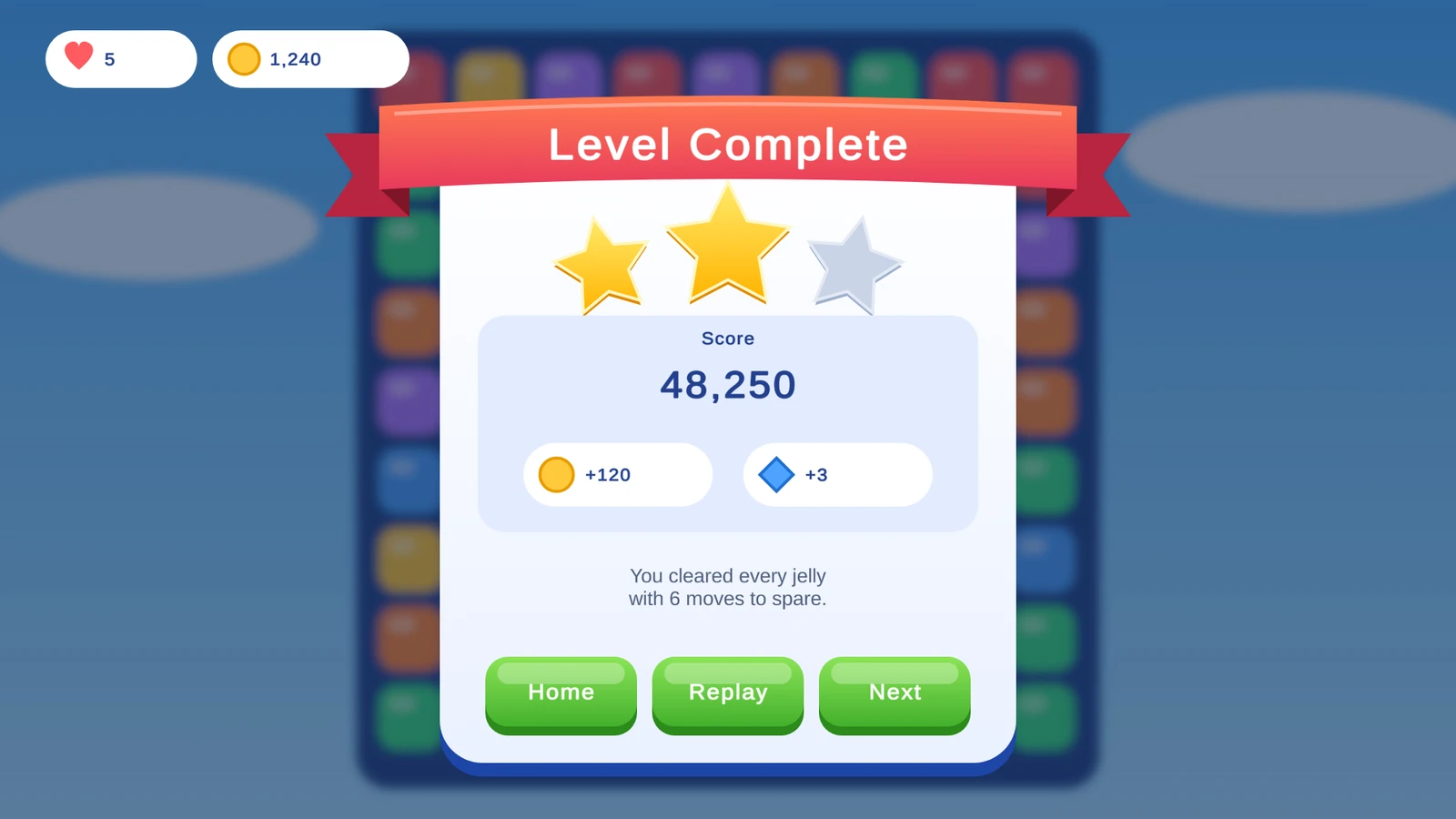
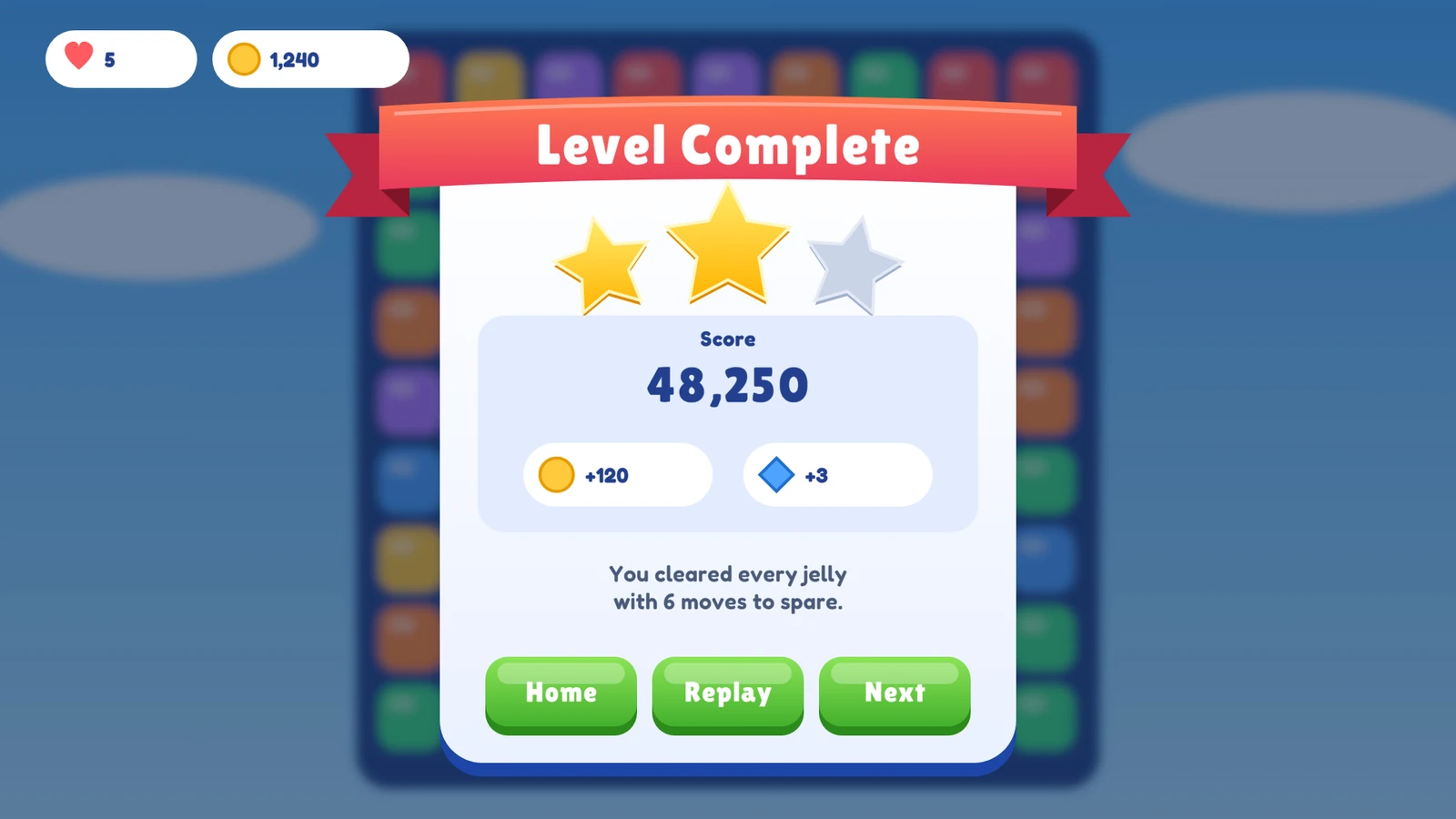 BeforeAfter
Apply in six steps
- Open My Fonts › Palettes, make the palette you want active, and press APPLY….
- Pick a scope: OPEN SCENES, SELECTED OBJECTS or PROJECT FOLDERS.
- Pick what to apply: PALETTE (every setting of each role) or FONTS ONLY (texts keep their own size, style, colour and spacing).
- Read the rows. Each text has a suggested role and the reason for it; change a role, or untick a row to leave it out. Select a row to edit its role right there.
- Check the render: BEFORE, AFTER, or WIPE and drag the handle.
- Press APPLY (N). Each ticked text gets a Font Palette Applier with its role, and from then on it follows the palette.
The Role naming guide lists the names FontOps recognises, and how they combine with size and other clues.
The Apply palette window
APPLY… in My Fonts › Palettes opens the Apply palette window on the active palette. It lists the texts in a scope, guesses the role each one plays, and shows your UI before and after. Nothing changes until you press APPLY, except the palette itself: the row editor, UPDATE PALETTE and NEW ROLE FROM THIS TEXT edit it, and texts already bound to it follow. Step 4 of Get started walks you through it on the sample scene.
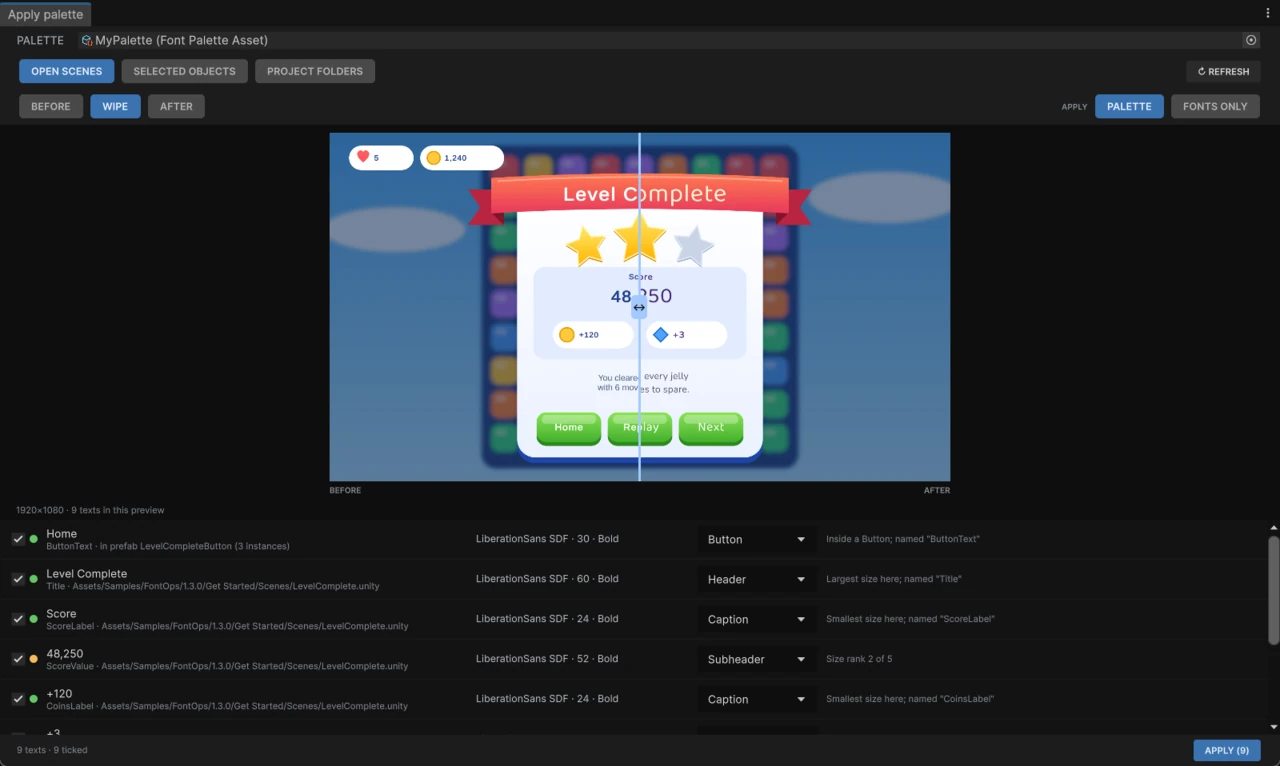
- PALETTE: the palette to apply. It starts on the active palette; pick another here.
- Scope: which texts to list (see Scopes). ↻ REFRESH reads them again.
- View: BEFORE, WIPE or AFTER (see Before/after render).
- APPLY: PALETTE applies every setting of each role, FONTS ONLY only its font (see Palette or fonts only). The window always opens on PALETTE.
- The render. Hover a row to outline its text in blue; the selected row's text is outlined in amber. Click a text to find its row.
- Note: the render size and how many texts it shows. A line can follow it: a warning when the palette's sizes don't fit the scene, or, in FONTS ONLY, UPDATE PALETTE and NEW PALETTE… (see Take the scene's look into a palette).
- Rows: one per text (see Rows). Select a row and a strip under the list edits its role (see Edit a role from its row).
- Counts and APPLY (N), which applies the ticked rows. In FONTS ONLY it reads APPLY FONTS (N).
Scopes
| Scope | Lists |
|---|---|
| OPEN SCENES | Every TMP text in the loaded scenes, plus the prefab open in Prefab Mode. The list follows your edits. |
| SELECTED OBJECTS | The texts under the GameObjects selected in the Hierarchy, or in the prefabs selected in the Project window. It follows the selection. |
| PROJECT FOLDERS | The texts in every prefab and scene under FOLDER. Type a folder or pick one with … (it must be inside Assets/). Closed scenes open briefly while FontOps reads them. |
PROJECT FOLDERS reads the folder when you pick the scope, change the folder or palette, press ↻ REFRESH, or after an APPLY. When the window reopens it waits for you: "Press ↻ REFRESH to read the texts in Assets/Samples/FontOps/1.3.0/Get Started. Scenes there open briefly."
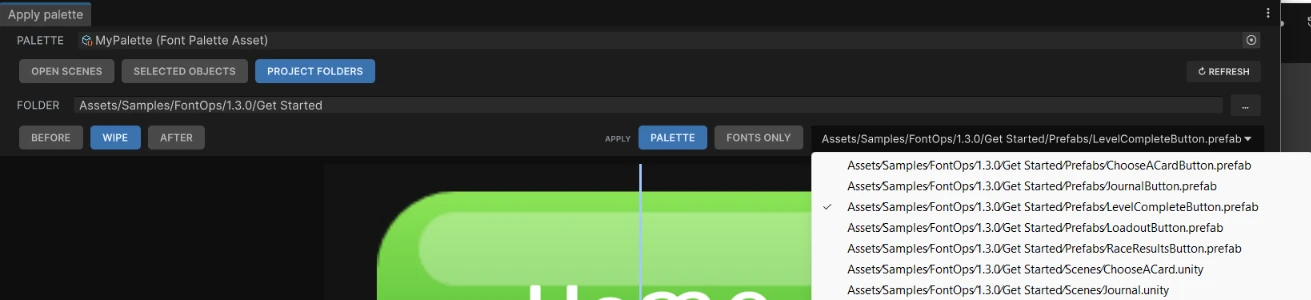
The picker on the right of the view bar chooses which scene or prefab to render. It shows when the rows come from more than one, and always in PROJECT FOLDERS.
Rows
Each row is one text. From left to right:
- Tick — ticked rows are applied.
- Confidence dot — how sure FontOps is of the role. Hover it for the exact figure.
- Text, then the GameObject's name and where it lives: the scene path, or "in prefab LevelCompleteButton (3 instances)" for a text that comes from a prefab.
- Current look — font, size and style today.
- Role — the palette's roles, plus Skip.
- Reason — why FontOps picked that role. The Role Naming Guide lists the names it recognises. An amber reason is a flag: the text looks different from its role (see Flags).
| Dot | Confidence | Starts |
|---|---|---|
| Green | 75 % or more | Ticked |
| Amber | 40 % to 74 % | Ticked |
| Red | Below 40 % | Unticked |
| Grey | No role (Skip) | Unticked |
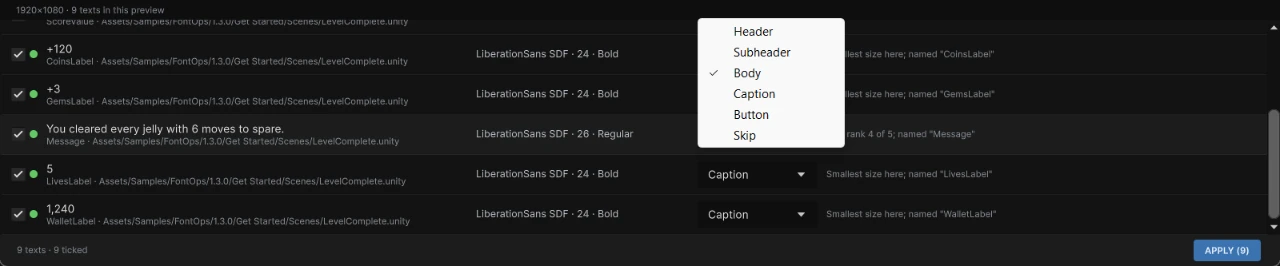
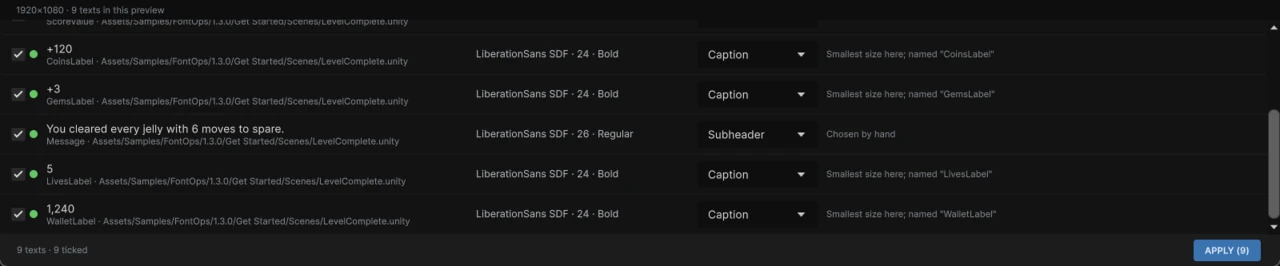
- Pick a role and the row reads Chosen by hand; pick Skip and it reads Skipped by hand. Untick a row to leave it out. Your picks survive a refresh.
- A text that already has an applier keeps its role: "Its applier already uses Header". An applier role this palette doesn't have maps to the matching one: "Its applier's role Title maps to Header".
- A text in a font and size nothing else uses, with no name to explain it, reads "Different font and size from the rest: looks hard-coded" and starts unticked.
Some rows start unticked on purpose. You can tick them yourself unless the row is locked:
| Reason on the row | Why |
|---|---|
| Already uses MyPalette › Caption | The text's applier already has this palette and role, and its ticks match the APPLY mode (see What APPLY writes). |
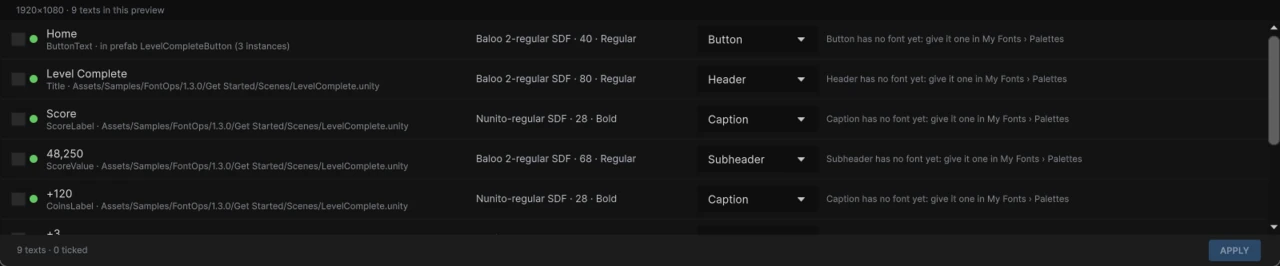
| Caption has no font yet: give it one in My Fonts › Palettes | Applying a role with no font would only resize the text. |
| Marked FontComplianceIgnore: left out | The text has a Font Compliance Ignore component. |
| Another object here has the same name path: rename one to apply it | Another object in the same prefab or closed scene shares the text's name path, so FontOps can't tell them apart. The row is locked. |
A text already on this palette and role whose ticks don't match the mode starts ticked, and its reason says what APPLY would change: "Already uses MyPalette › Caption; fonts only → every setting" in PALETTE, or "…; every setting → fonts only" in FONTS ONLY. Ticks set by hand read "some settings".
Assets/ changes in the prefab itself, so every
instance follows, and its row reads "in prefab LevelCompleteButton (3 instances)". An instance that overrides the text's font, size,
style, colour or spacing, or its applier, keeps its own row and changes only where it is.
Before/after render
The window renders your UI at the Game view's size, from copies in an off-screen scene. Your scenes and prefabs stay untouched until APPLY.
- BEFORE shows the texts as they are now. AFTER shows them with the ticked rows' roles: every setting in PALETTE, only the font in FONTS ONLY. WIPE shows both: drag the ↔ handle to compare. Change a role, a tick, the mode or a field in the row editor and the render updates.
- Hover a row to outline its text in blue. The selected row's text has an amber outline. Click a text on the render to select its row.
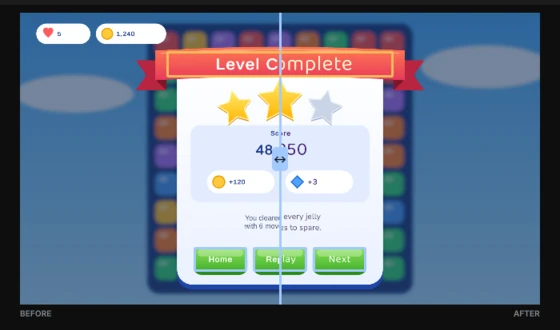
- The note under the render reads like "1920×1080 · 9 texts in this preview". Texts on world-space canvases and 3D TextMeshPro texts aren't drawn; the note counts them as "not on a screen-space canvas, left out".
- A prefab without its own canvas is framed on its own size, as in Prefab Mode.
- Unity 6 previews closed scenes too. Unity 2022.3 can't: "Open LevelComplete to preview it: Unity 2022 can't load a closed scene off-screen."
- The render pauses in Play Mode ("Preview pauses in Play Mode.").
Palette or fonts only
APPLY, on the right of the view bar, picks what the texts take from their roles. The window opens on PALETTE every time.
- PALETTE — every setting of each role: font, size, style, colour and spacing.
- FONTS ONLY — only each role's font. Each text keeps its own size, style, colour and spacing. Use it when the scene's sizes are right and you only want the palette's fonts.
Switching re-checks the rows and redraws the render at once. It doesn't read the scope again, and your own role picks stay. In FONTS ONLY the footer button reads APPLY FONTS (N), and a line under the note offers to keep the scene's look in a palette:
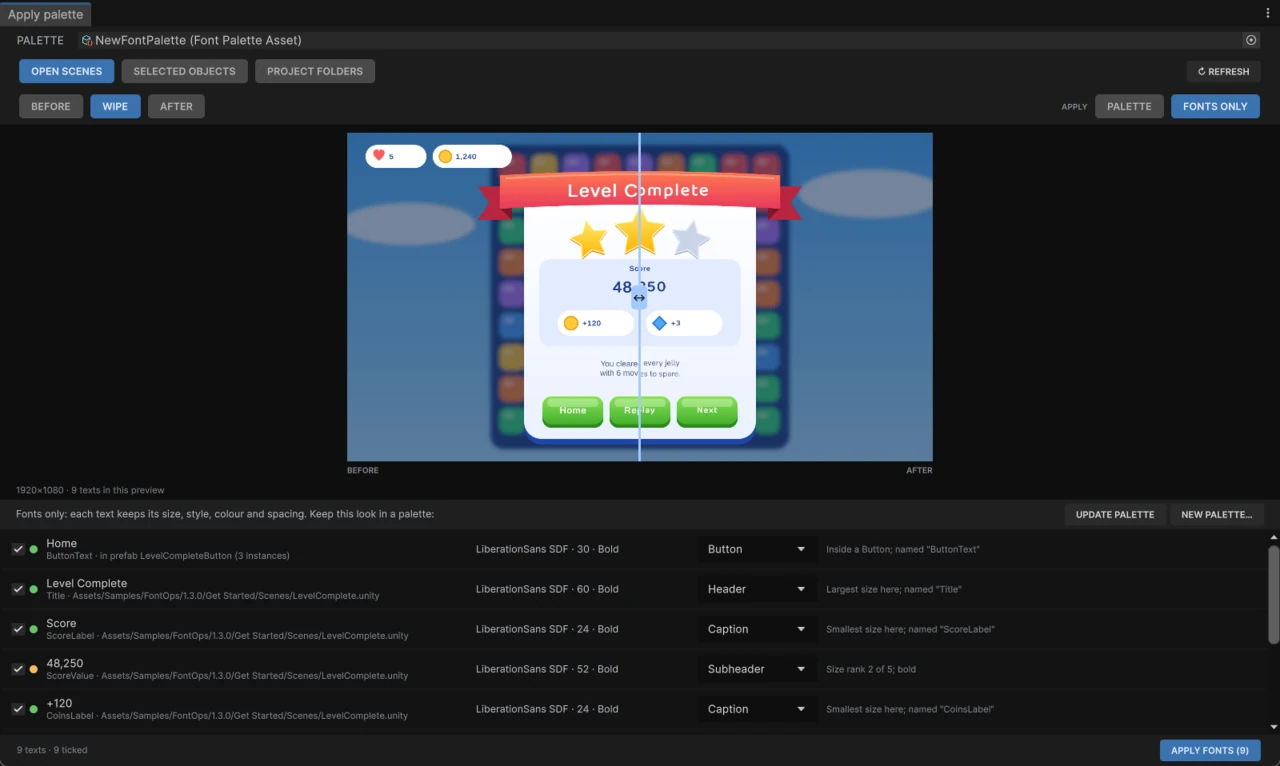
Here every ticked text takes its role's font, Baloo 2 or Nunito, and keeps the scene's own size: the title stays at 60 px.
What APPLY writes
Each applier has Property Overrides, one tick per setting it writes into its text. APPLY sets the ticks for the mode:
- PALETTE ticks every setting.
- FONTS ONLY ticks only Font.
Applying again replaces the ticks a text already has. A text applied with FONTS ONLY follows later palette edits only for its font. Apply in PALETTE later, as a swap to another palette does, and every setting is ticked again, so the whole look changes.
Take the scene's look into a palette
A new palette starts on generic sizes (Header 32 px, Body 16 px…), while a real screen may have a 60 px title. In PALETTE mode, when the palette's sizes are far from the scene's, an amber line under the note says so and names the biggest gap:
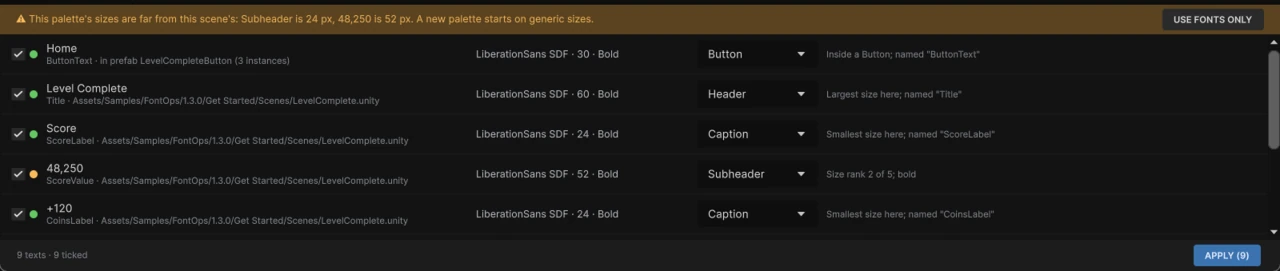
- USE FONTS ONLY switches to FONTS ONLY.
- The line shows when the roles are, overall, under 0.6 or over 1.67 times the size of their ticked texts.
- "A new palette starts on generic sizes." shows only while the palette still has the sizes + NEW gives it.
In FONTS ONLY, the line under the note keeps the scene's look instead:
- UPDATE PALETTE copies the scene's look into this palette's roles.
- NEW PALETTE… does the same in a copy of the palette.
- Rows already on this palette and role count too, so you can still do it after APPLY FONTS. With no such row and nothing ticked, both are greyed out.
For each role, UPDATE PALETTE finds the look most of its texts share:
- Texts share a look when they have the same size, style and spacing. A text in a prefab counts once per instance, and ties go to the larger size.
- The role takes that size, style and spacing, and the colour most texts with that look use.
- Fonts and role names never change.
- The whole update is one Undo step, and the palette is saved.
It asks first. The confirm lists each role that changes. When some of a role's texts look different or have another colour, it also says how many: those texts take the role's look when you apply.
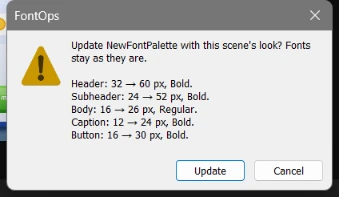
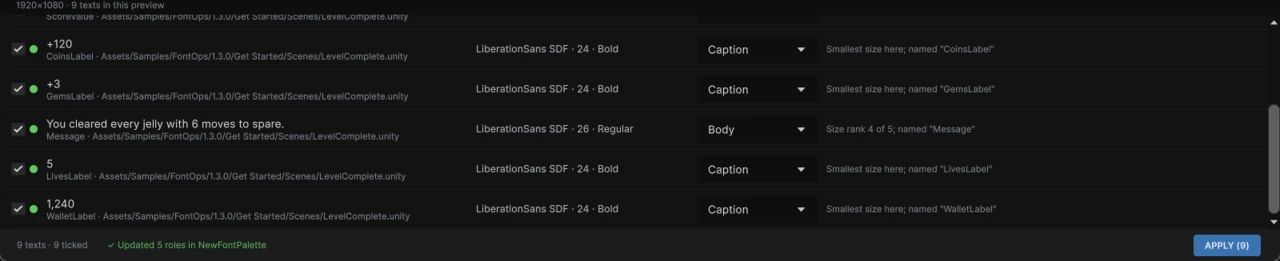
Update writes the roles and switches the window to PALETTE. The status reads "✓ Updated 5 roles in NewFontPalette". A role whose size and style already match reads "Caption: colour or spacing from the scene." in the confirm.
NEW PALETTE… asks where to save the copy ("New palette from this scene", named "NewFontPalette Scene" in the palette folder), writes the same looks into it and switches the window to it, in PALETTE mode. Your role picks stay, and the status reads "✓ Created NewFontPalette Scene". It never replaces a palette that already exists: pick a new name.
Flags
Once a role's look matches the scene, as after UPDATE PALETTE, its rows that look different show an amber reason in place of the usual one. On Level Complete each role's texts share one look, so nothing is flagged:
| Flag | Means |
|---|---|
| 18 px Italic here; Caption is 24 px Bold | The text's size or style differs from its role's. |
| Colour differs from Caption | Only the colour differs. |
| Spacing differs from Caption | Only the spacing differs. |
| Colour and spacing differ from Caption | Both differ. |
Flags show only in PALETTE mode, only on ticked rows, and only while the role still matches the scene. Change the role (for example SIZE in the row editor) and its flags go away. APPLY gives a flagged text its role's look. To keep its own look, give it a role of its own with NEW ROLE FROM THIS TEXT.
Edit a role from its row
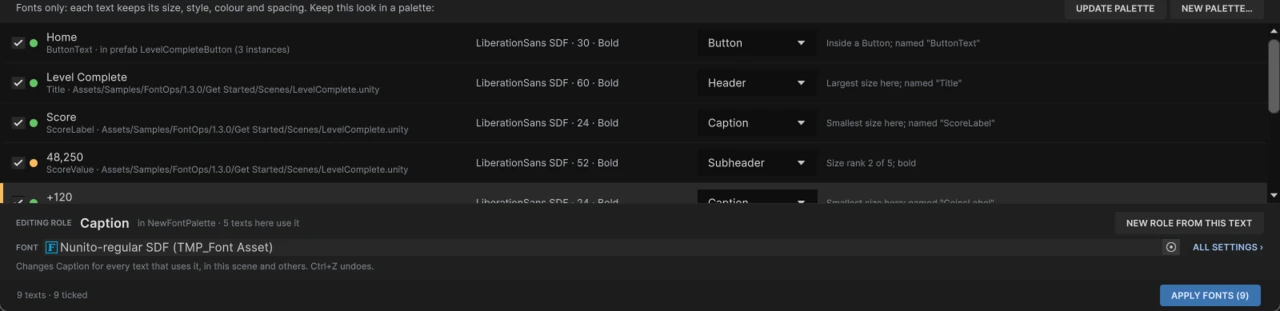
Select a row and a strip between the list and the footer edits its role, in the palette itself. The selected row gets an amber left edge, and its text an amber outline on the render:
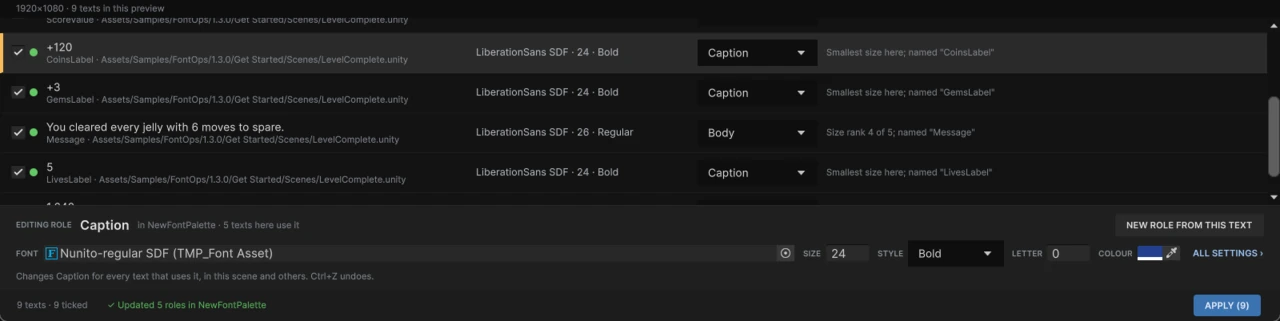
- EDITING ROLE names the role and how many texts here use it: the ticked ones and those already on it.
- FONT, SIZE, STYLE, LETTER (letter spacing) and COLOUR change the role. A new font also sets the role's legacy font, as in the role editor.
- ALL SETTINGS › opens My Fonts › Palettes with this palette active and the role open, for line, word and paragraph spacing. If a role there has unsaved changes, FontOps asks about them first.
An edit changes the role for every text that uses it, in this scene and others, and the render updates. Each edit is one Undo step. With AUTOSAVE on in the role editor, the palette saves at once; otherwise APPLY saves it, or File › Save Project. In FONTS ONLY the strip shows only FONT:
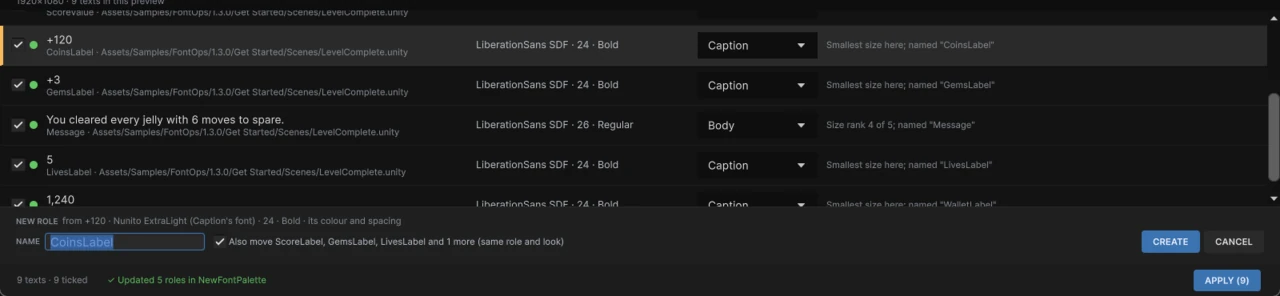
NEW ROLE FROM THIS TEXT turns the strip into a form for a new role, made from the selected text. Below, Caption's SIZE was first changed to 20 in the strip; the new role still takes the text's own 24 px:
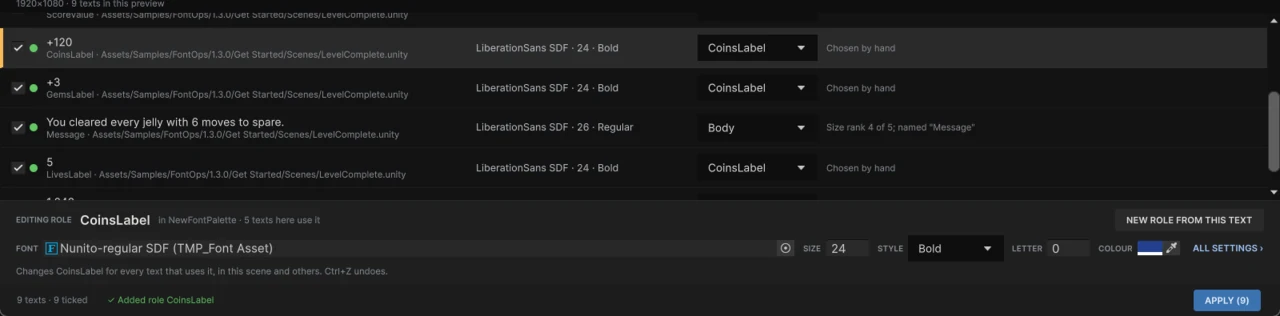
- The new role takes the text's size, style, colour and spacing, and the font of the text's current role (or the text's own font when that role has none). The line after NEW ROLE lists them.
- NAME suggests the parent the texts share, or else the text's GameObject name, here CoinsLabel. The name is cleaned like a rename in the role editor.
- Also move… takes along the other texts with the same role and the same size, style and spacing; their colour may differ. It names up to three, then "and N more", and is hidden when there are none.
- CREATE adds the role as one Undo step. The text and those moved with it switch to the new role, ticked, with "Chosen by hand", and the strip edits the new role. The status reads "✓ Added role CoinsLabel". CANCEL goes back.
APPLY
APPLY (N), or APPLY FONTS (N) in FONTS ONLY, adds a Font Palette Applier to each ticked text, or updates the one it has, with the palette, the row's role and the mode's ticks (see What APPLY writes), then applies it.
- Texts in open scenes change as one Undo step. The scenes are left modified for you to save.
- If edits in the row editor left the palette unsaved, APPLY saves it.
- Prefabs and closed scenes are saved straight away, and Undo can't take that back, so FontOps asks first:
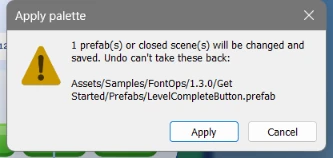
Afterwards the list reads again and the footer reports what happened:
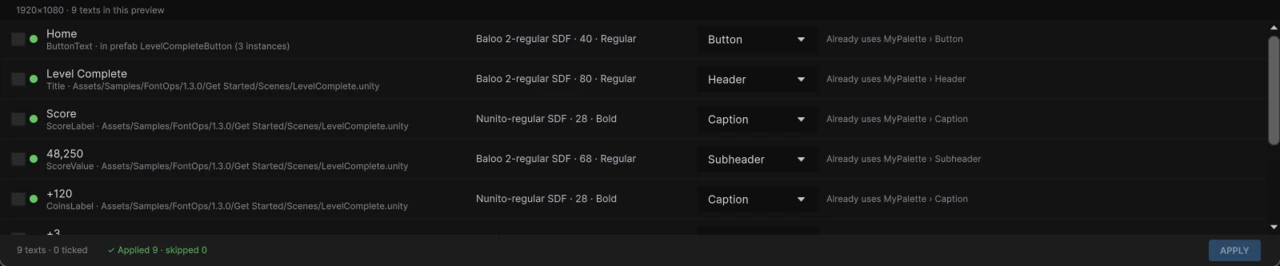
The status can add "· ✗ N errors, see Console" and "· N scene(s) left unsaved" (an open scene that already had unsaved edits: FontOps changes it and leaves the save to you). Hover the status for each text's outcome. In Play Mode the counts add "· exit Play Mode to apply" and APPLY is greyed out.
Empty states
| The window says | Because |
|---|---|
| Choose a palette to apply. | PALETTE is empty. |
| This palette has no roles yet. Add some in My Fonts › Palettes. | The palette has no roles. |
| Press ↻ REFRESH to read the texts in folder. Scenes there open briefly. | PROJECT FOLDERS hasn't read the folder yet. |
| No TMP texts in the open scenes. | OPEN SCENES found no text. |
| Select GameObjects in the Hierarchy, or prefabs in the Project window. | SELECTED OBJECTS has nothing selected. |
| No TMP texts in prefabs or scenes under folder. | PROJECT FOLDERS found no text. |
A palette whose roles have no fonts yet (a fresh + NEW) lists the texts but starts every row unticked, with "Header has no font yet: give it one in My Fonts › Palettes".
Swapping palettes
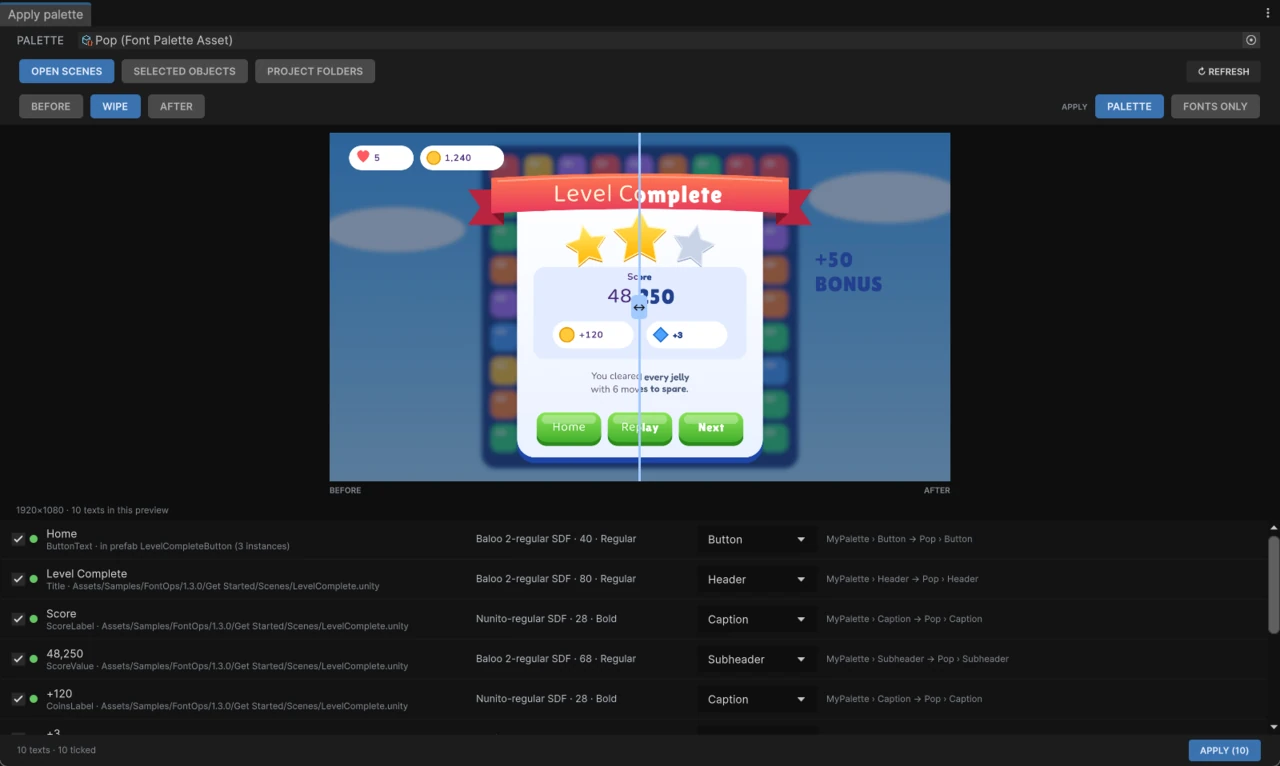
Texts that already have an applier keep their role and take the new palette, so moving a screen to another palette is one APPLY. Pick the other palette in PALETTE: each row shows the swap.
 MyPalettePop
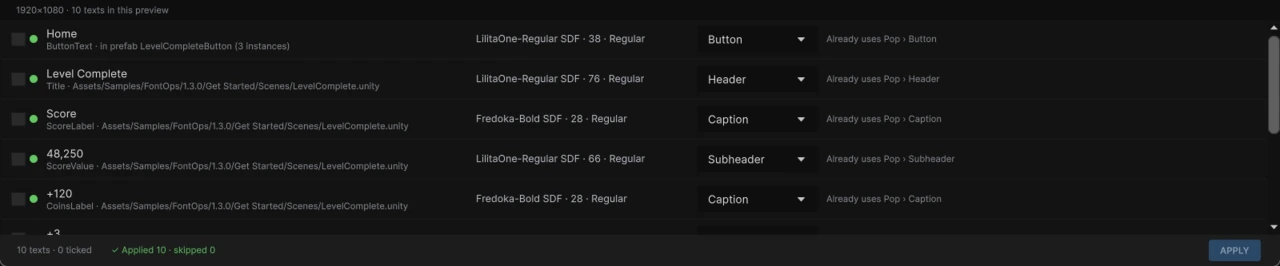
After APPLY the rows read "Already uses Pop › Header" and the status reads "✓ Applied 10 · skipped 0". In PROJECT FOLDERS scope, one APPLY swaps every text in a folder.
A swap in PALETTE mode ticks every setting again, so texts you applied with FONTS ONLY take the new palette's whole look, sizes included. To swap only the fonts, switch to FONTS ONLY first.
Troubleshooting
Everything got smaller (or bigger) after APPLY
The palette's sizes don't fit the scene, which is common with a fresh + NEW palette (Header 32 px against a 60 px title). Undo, then use FONTS ONLY to keep the scene's sizes, or UPDATE PALETTE in FONTS ONLY to copy them into the palette first. See Take the scene's look into a palette.
A row is unticked and I can't tick it
The row is locked because another object in the same prefab or closed scene has the same name path, so FontOps can't tell them apart. Rename one of them, then press ↻ REFRESH.
Every row starts unticked
The palette's roles have no fonts yet. Give them fonts in My Fonts › Palettes, or with the row editor's FONT; applying a role with no font would only resize the text.
Some texts show an amber reason
That's a flag: the text looks different from its role, which fits the rest of the scene. APPLY gives it the role's look; to keep its own, use NEW ROLE FROM THIS TEXT.
The render is missing, or says Unity 2022 can't load the scene
Unity 2022.3 can't load a closed scene off-screen: open the scene to preview it. Unity 6 previews closed scenes too. The render also pauses in Play Mode.
Some texts aren't drawn in the render
Texts on world-space canvases and 3D TextMeshPro texts aren't drawn. The note under the render counts them as "not on a screen-space canvas, left out". They are still in the rows and still applied.
APPLY is greyed out
Either no row is ticked, or you're in Play Mode: the counts add "· exit Play Mode to apply".
I applied by mistake
Texts in open scenes change as one Undo step: press Ctrl+Z. Prefabs and closed scenes are saved straight away and Undo can't take them back, which is why FontOps asks before it changes them. Edits to the palette itself (row editor, UPDATE PALETTE, NEW ROLE) are Undo steps of their own.