FontOps
The in-editor font pipeline for Unity. Browse, install, organise and audit your type system without leaving the editor.
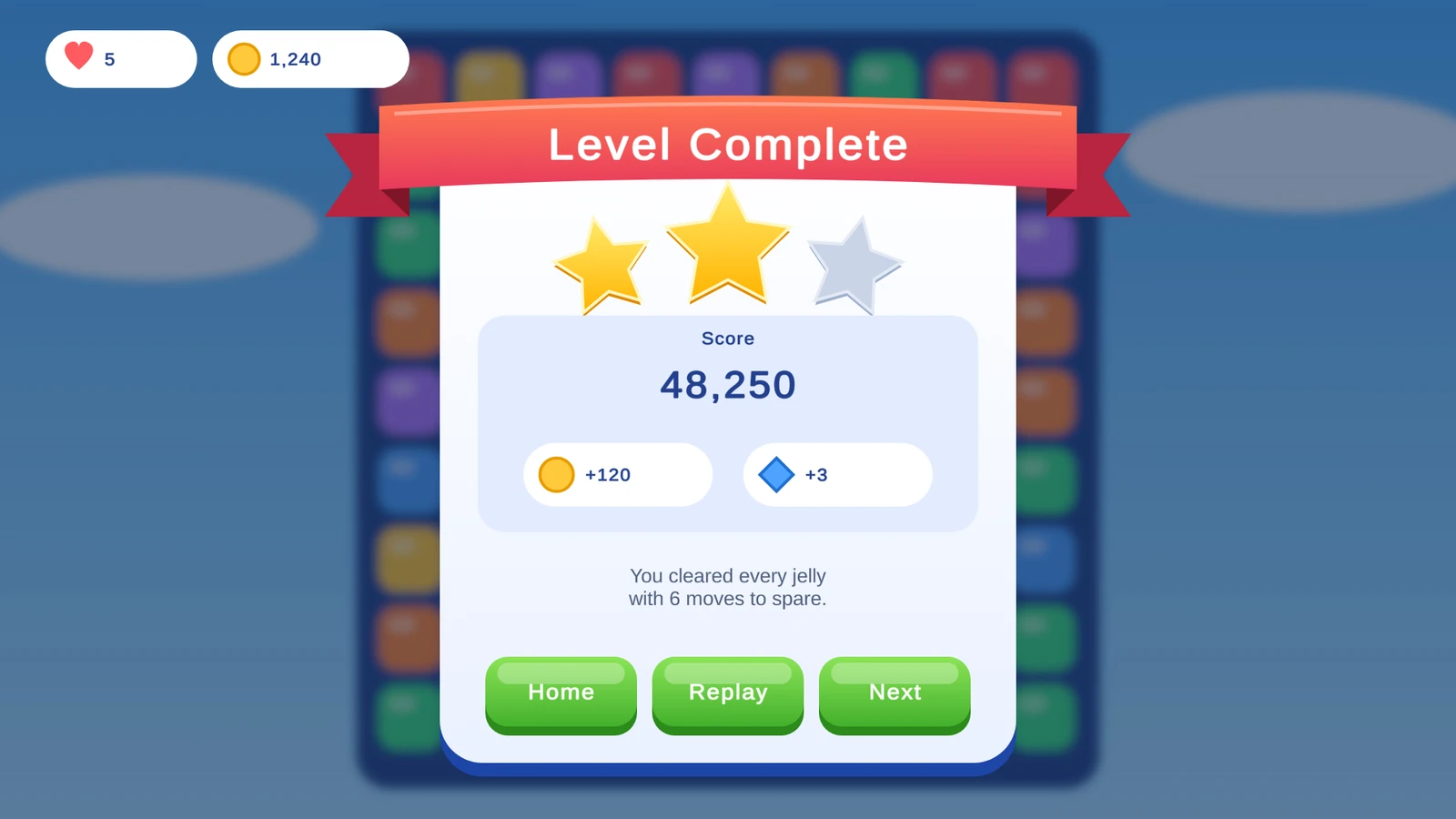
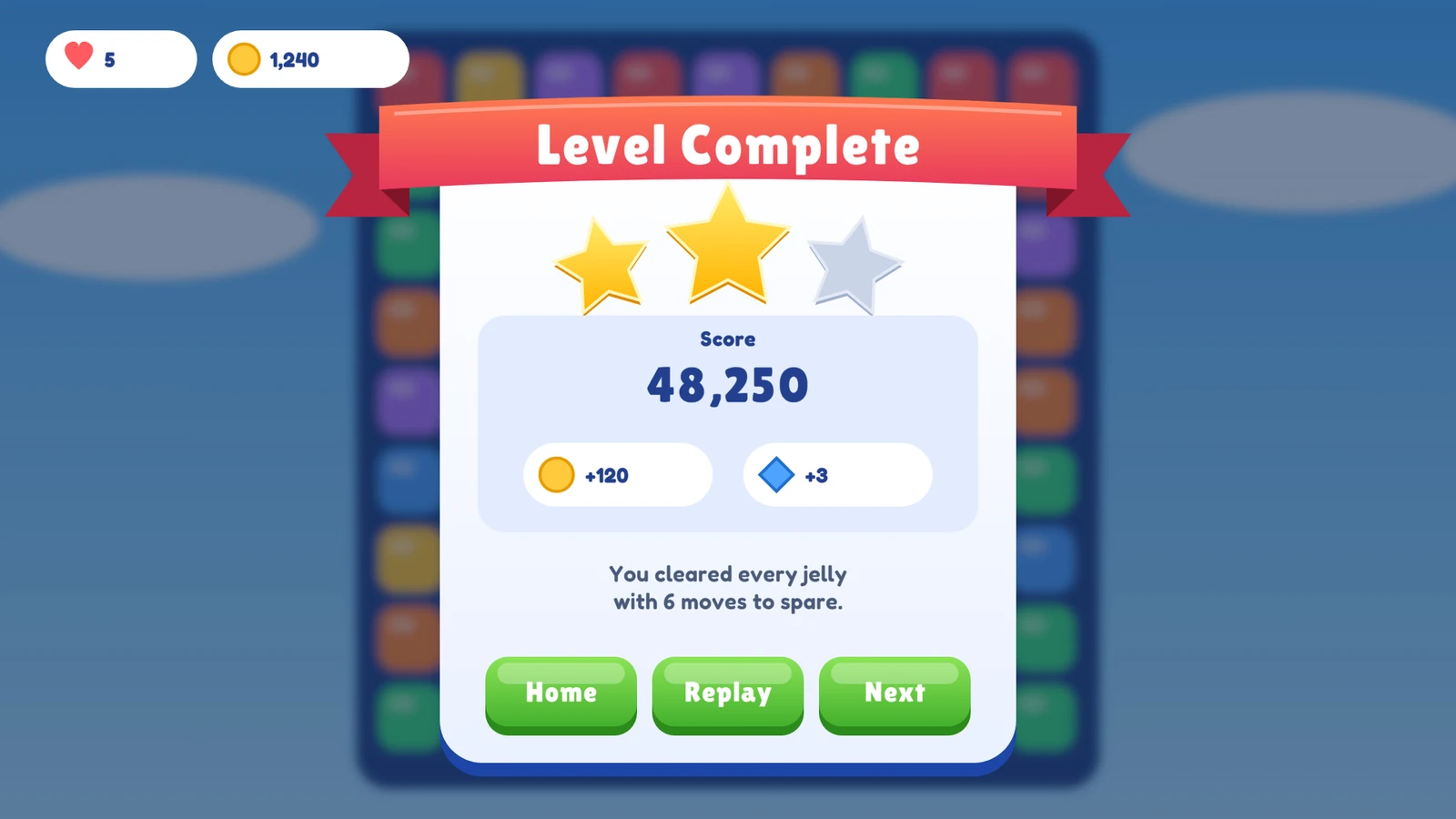 BeforeAfter
What do you want to do?
Set up and take the tour
Install the package, then follow the four-step Get started page inside FontOps on a sample game screen.
Get started →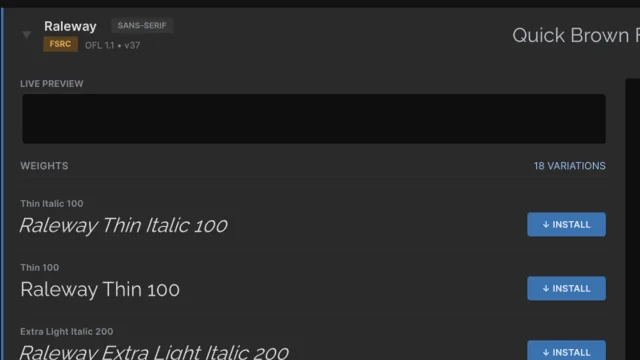
Find and install a font
Search Google Fonts, Fontshare and Fontsource from the editor and install with one click, licence file included.
Search and install →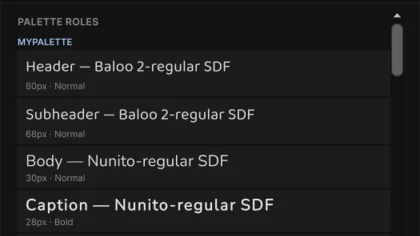
Pick a font in the Inspector
A search button beside every TMP font field: palettes, project fonts and the catalogs, each in its own face.
Font Picker →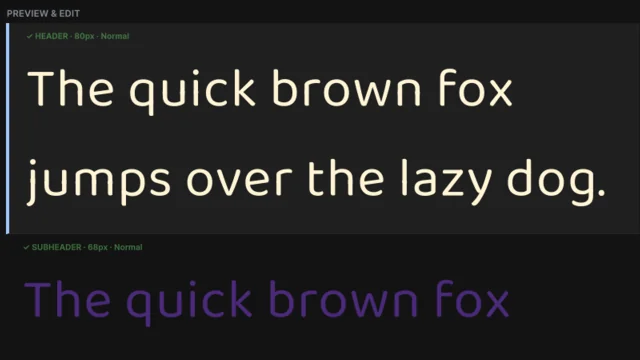
Build a palette of text roles
Name your roles once (Header, Body, Button) and give each a font, size, style, spacing and colour.
Palettes →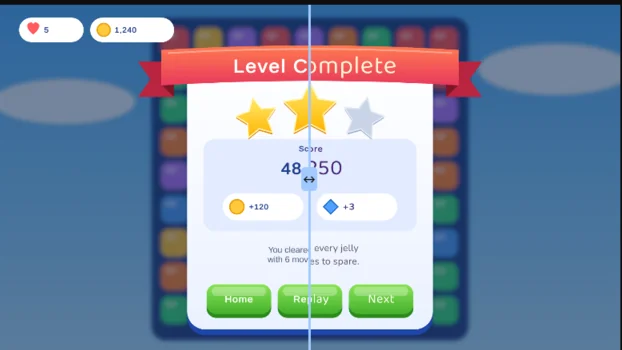
Apply it to a whole screen
FontOps recognises each text's role, shows a before/after render, and applies the palette to scenes, selections or folders.
Apply a palette →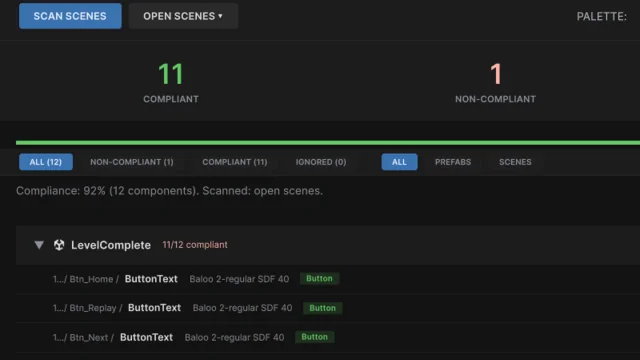
Audit every text
Scan scenes and prefabs against a palette, see why each text fails, and fix it with one click. Clean up duplicate fonts too.
Text Auditor →Driving FontOps from a coding agent or a CI script instead? See AI skills and agent API.
Quick start
- Open
Tools → FontOps— launches the editor window. The first time, it opens on Get started, which walks you through the rest. - (Optional) Add a Google Fonts API key —
Settings → Google Fonts API. Adds the Google Fonts catalog; Fontshare and Fontsource don't need any key. - Browse and install — use the source pills (
ALL / GOOGLE FONTS / FONTSOURCE / FONTSHARE (OSS)), pick a font, hit↓ INSTALL. - Create a Font Palette —
Assets → Create → FontOps → Font Palette. Five default roles ship out of the box. - Assign fonts to roles — Header, Subheader, Body, Caption, Button, or any custom role you add.
- Apply the palette —
My Fonts › Palettes › APPLY…, review the recognised roles, pressAPPLY. See Apply a palette. - Run a compliance audit — FontOps Tools tab ›
TEXT AUDITOR›SCAN PROJECT(or pick Folder… / Open scenes). Anything off-palette gets a flag and aFIX. - Pick fonts inline — click the small search button (🔍) beside the Font Asset field on any TMP_Text inspector for visual font selection (and one-click catalog installs).
Everything it does
| What | Details |
|---|---|
| 3 font providers | Google Fonts · Fontshare (OSS) · Fontsource — combined ~3,000+ unique families, all OFL/Apache/MIT/UFL |
| One-click install | No browser. No ZIP archive. TTF lands in your configured folder, auto-generates a TMP_FontAsset + SDF atlas if enabled |
| Cross-source dedup | ALL view collapses the same family across catalogs and shows a multi-source badge (e.g. GF + FSRC) |
| Font Palettes | ScriptableObjects with named roles (Header, Subheader, Body, Caption, Button, …) — every TMP component pulls from one source of truth |
| Apply… (new) | APPLY… puts a palette on the texts in your open scenes, selected objects or project folders. It recognises each text's role, shows a before/after render, and lets you change any role before you apply |
| Font Picker (new) | A small search button (🔍) beside every TMP_FontAsset field — pick from palettes, installed fonts, or the catalogs, every option typeset in its own face. No more Unity object-picker roulette |
| Hover UI Preview (new) | Rest the pointer on any font in Search, My Fonts, or the picker and a window beside FontOps shows it in the game-UI and app screens it suits, out of 64 judged from the font file itself (16 each for console, PC, mobile and app, drawn at random without repeats), with one it doesn't suit and the reason in the last cell |
| Compliance Checker | Audits every text component in scenes + prefabs against a palette. It tells you why each failing text fails, names the closest role, and FIX gives the text a role. OPEN / IGNORE (with a reason) / RESTORE work in closed scenes too. Scan the whole project, a folder or the open scenes |
| Font Scanner | Project-wide font discovery, duplicate detection (MD5), source classification, missing-TMP-asset alerts. Duplicate cleanup (KEEP THIS repoints references and trashes byte-identical copies), ORGANIZE, and CREATE ALL for missing TMP assets |
| Palette-less general audit | Run a usage/quality report with no palette assigned — surfaces installed-but-unused families and placeholder flags. Every flag has a next-step button, and the grade honours your ignores |
| Licensing on every card | Canonical license label (OFL 1.1, Apache 2.0, MIT, UFL 1.0) sourced from authoritative endpoints — never guessed |
| Get started (new) | A page at the top of the sidebar with four guided steps and three optional tutorials. SHOW ME points at each tab and control in turn and leads on to the next step. Opens by itself the first time you run FontOps |
| Get Started sample (new) | Five game screens in plain TextMeshPro, each with a palette of its own and OFL fonts: Level Complete with Pop, Loadout with Tactical, Choose a Card with Tavern, Race Results with Podium and Journal with Notebook. Each screen uses one button prefab three times. Get started imports it for you |
| AI Skills (new) | Five SKILL.md files plus a JSON agent API so Unity AI Assistant, Claude Code, Cursor, and CI scripts can search, install, audit, and apply fonts without the UI |
| Zero boilerplate | All runtime components (FontPaletteApplier, FontComplianceIgnore) are drop-in MonoBehaviours |
Providers at a glance
| Provider | Catalog size | License filter | Delivery | API key |
|---|---|---|---|---|
| Google Fonts | ~1,700 families | OFL / Apache / UFL | Per-variant TTF from Google CDN | Needed to browse Google Fonts directly (Fontsource carries the same families without a key) |
| Fontshare (OSS) | ~150 families | OFL only (ITF FFL rejected at ingest) | Per-family ZIP → extracted + cached | Not needed |
| Fontsource | 2,077 families (GF superset + 126 unique) | OFL / Apache / MIT / UFL | Per-variant TTF from jsDelivr | Not needed |
What's in the box
Runtime components
FontPaletteAsset— the palette ScriptableObject. Holds a list ofFontRoleEntrywith font, size, style, spacing, and colour per role.FontPaletteApplier— MonoBehaviour that reads a role from a palette and pushes it onto the siblingTMP_Text. Per-property toggles for font, size, style, colour, spacing. In the editor, it follows palette edits live in open scenes and the open prefab.FontComplianceIgnore— mark a GameObject to be skipped by the compliance audit with an optional reason string (typed when you press IGNORE).
Editor tools
- FontOps window (
Tools → FontOps) — all browsing, installing, palette editing, auditing, and scanning lives here. - Font Scanner — project-wide discovery, duplicate detection and cleanup (KEEP THIS), ORGANIZE, missing-TMP alerts with CREATE ALL, ignore list.
- Text Auditor — hierarchy-based compliance scan with the reason and closest role for each failing text, FIX / IGNORE / RESTORE, and a project / folder / open-scenes scope.
- Apply… window —
My Fonts › Palettes › APPLY…recognises each text's role, previews before/after, and adds aFontPaletteApplierto every ticked text. See Apply a palette and Names FontOps recognises. - Get started page — the first item in the sidebar: four steps and three optional tutorials with SHOW ME, using the Get Started sample.
- Palette Extractor — scan project fonts + build a palette with AI-assisted role naming.
- AI Skills + agent API —
AIAssistantSkills/andFontOpsCli(batch mode or C#). See AI Skills. - Font Picker — a small search button beside every
TMP_FontAssetfield; assigns from palettes, installed fonts, or one-click catalog installs. See Font Picker.
Requirements
| Dependency | Minimum Version | Notes |
|---|---|---|
| Unity | 2022.3 LTS | Works on all newer LTS + Unity 6 |
| TextMeshPro | 3.0.6 | Required. Absorbed into com.unity.ugui in Unity 6 — still works |
| Newtonsoft Json | 3.2.1 | Bundled automatically by UPM; no manual install |
Licensing posture
Questions people ask
Which Unity versions does FontOps support?
Unity 2022.3 LTS and every newer version, including Unity 6. FontOps needs TextMeshPro 3.0.6 or later; in Unity 6, TextMeshPro is part of com.unity.ugui and works the same way.
Do I need a Google Fonts API key?
No. Fontshare and Fontsource need no key, and Fontsource carries the Google Fonts families too. A key adds the Google Fonts catalog itself as a source. See API key setup.
Can I ship these fonts in a commercial game?
FontOps only lists fonts under OFL 1.1, Apache 2.0, MIT or UFL 1.0, all of which allow embedding in commercial games. Every install puts the licence file next to the font, and every card shows the licence. Read the licence that comes with each font for its exact terms.
Where do installed fonts go?
By default into Assets/Fonts/GoogleFonts, Assets/Fonts/Fontshare and Assets/Fonts/Fontsource, one folder per family, and palettes into Assets/Fonts/Palettes. You can change each folder in Settings.
Can I add my own font provider?
Yes. A provider you write in an editor script shows up in Search next to the three catalogs, with its own source pill, previews and installs: for example a foundry you have a licence with, or your studio's shared font folder. See Add your own provider.
Can I use fonts I bought, or found elsewhere?
Yes. Besides your own provider, you can add the files yourself:
- Copy the family's font files into a folder of its own inside one of your download folders, for example
Assets/Fonts/GoogleFonts/My Font/. The family then shows in My Fonts next to the ones FontOps installed. - Press CREATE TMP on the family, or + SDF on one style, to make its TextMeshPro font asset. From then on, palettes, Apply…, the Font Picker and the Text Auditor treat it like any other font.
- Fonts anywhere else under
Assets/work too; they just don't show in My Fonts. The Font Scanner lists them as CUSTOM and can ORGANIZE them into one folder.
Checking the licence is up to you: FontOps only vouches for the fonts its own catalogs list. For a font you added, the licence tooltip in My Fonts shows what the file itself says.
Does any of it end up in my build?
Only what you use at runtime: FontPaletteAsset, FontPaletteApplier and FontComplianceIgnore live in the runtime assembly. The FontOps window, the Font Picker, Apply… and the audits are editor-only.
Do the docs work offline?
Yes. A copy of these pages ships inside the package under Documentation/; the DOCS button in the FontOps window opens it, search included. Short video clips are shown as still images there, with a link to this site.
Will FontOps ask me for a review?
Rarely, and never in the middle of work. After FontOps has helped you a few times on more than one day (a font installed, a text fixed in the Text Auditor, a palette applied), a short line may appear above REVIEW ↗ at the bottom of the sidebar when you next open the window or come back to it. LATER hides it and it asks once more after two weeks; DON’T ASK AGAIN stops it for good. A review unlocks nothing, and the count stays on your machine. REVIEW ↗ opens FontOps’ reviews on the Asset Store whenever you like. For a problem, email support@davgtz.dev instead: a review can’t be answered like an email.
Are there videos?
The pages here use short clips recorded from the current version. There are also three longer walkthroughs on YouTube, recorded with FontOps 1.0, so some of the window has changed since: feature overview, initial setup and quick start.
More answers, by feature, in Troubleshooting and FAQ.